Organize Your Chats Like a Pro: Introducing Labels in onWebChat
When you're handling dozens of chats every day, things get messy fast. You end up with a long list of visitors and conversations, and no easy way to tell at a glance which ones need attention, which are already handled or who the person on the other end actually is.
Most teams deal with this by keeping notes, asking each other or just relying on memory. None of that scales.
We added Labels to fix exactly this problem. You can create your own tags, pick a color for each, and attach them to visitors, chats or offline messages.
What Are Labels?
A label is a small colored badge with a short name, something like "VIP", "Follow Up", or "Billing Issue". You create as many as you need, each with its own text and color.
Once attached, the label shows up right there in the list. No need to open a conversation to remember what it was about: the badge tells you on the spot. This works across the visitor list, chat history, visitor history, and offline messages.
You can also put more than one label on the same entry when needed.
Creating Your Own Labels
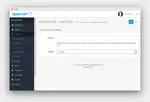
In your dashboard, open the label menu on a chat, a chat history entry, a visitor in Visitors History or an offline message, choose Manage labels and start building your set. For each label you set two things:
- The text: keep it short and concrete. "Hot Lead", "Urgent", "Refund", "Demo Done": use the words your team already uses when talking about customers.
- The color: red for something pressing, green when things are sorted, orange for in-progress. Entirely your choice.
Where You Can Apply Labels
Labels work across three areas:
- Visitors: tag someone after your first conversation. Next time they come back, whoever picks up the chat already has context before typing the first word.
- Chats: label individual conversations. "Closed", "Needs Callback", "Sales Lead", whatever helps you quickly find that chat when you go back through history later.
- Offline Messages: a customer wrote in overnight? Tag it "Urgent" so the first agent who logs in the next morning knows what to open first.
Labels Show Up Right in the Lists
The point is that you shouldn't have to dig for information. Labels are visible directly in:
- Visitor list (current online visitors)
- Chat history
- Visitor history
- Offline messages
Each label appears as a small colored badge right next to the entry. Scan the list, spot what matters, act on it.
This also helps a lot when you have more than one agent. No more asking "did anyone deal with this already?": the label answers that.
A Few Ways Teams Actually Use This
Here is how labels tend to fit into real day-to-day work:
- Tracking sales progress: tag visitors as "Interested", "Demo Done", or "Converted" and filter by each stage. You end up with a rough pipeline right inside your chat tool.
- Flagging returning customers: label regulars or important accounts as "VIP". Any agent who picks up that chat sees it and adjusts accordingly, without having to read back through old conversations.
- Sorting issues by type: "Technical", "Billing", "Refund", "Complaint". At the end of the day, filter by type to see where most problems are coming from.
- Managing follow-ups: before closing a chat, tag it "Follow Up". Next morning, filter by that label and your to-do list is already there.
- Marking junk: label bot traffic or obvious spam so it stays out of the way when you're reviewing real conversations.
Does It Actually Help?
Honestly, it depends on how you use it. If the labels you create match how your team already thinks (the names that already come up in conversation, the categories that matter to your business), then yes, the difference is noticeable.
Agents stop repeating the same opening questions to returning customers. Follow-ups actually happen. And if you're running things solo, it works like a lightweight CRM built right into your chat tool.
Our suggestion: start with three or four labels that solve a real problem you have right now. Don't try to map out every possible scenario on day one. Add more later once you know what's useful.