Connect onWebChat with Volusion

Add live chat to your Volusion store in seconds with onWebChat and start engaging directly with your visitors and customers.

Volusion Live Chat Installation Guide

Step 1 In your Volusion Admin Area, go to Design → File Editor.
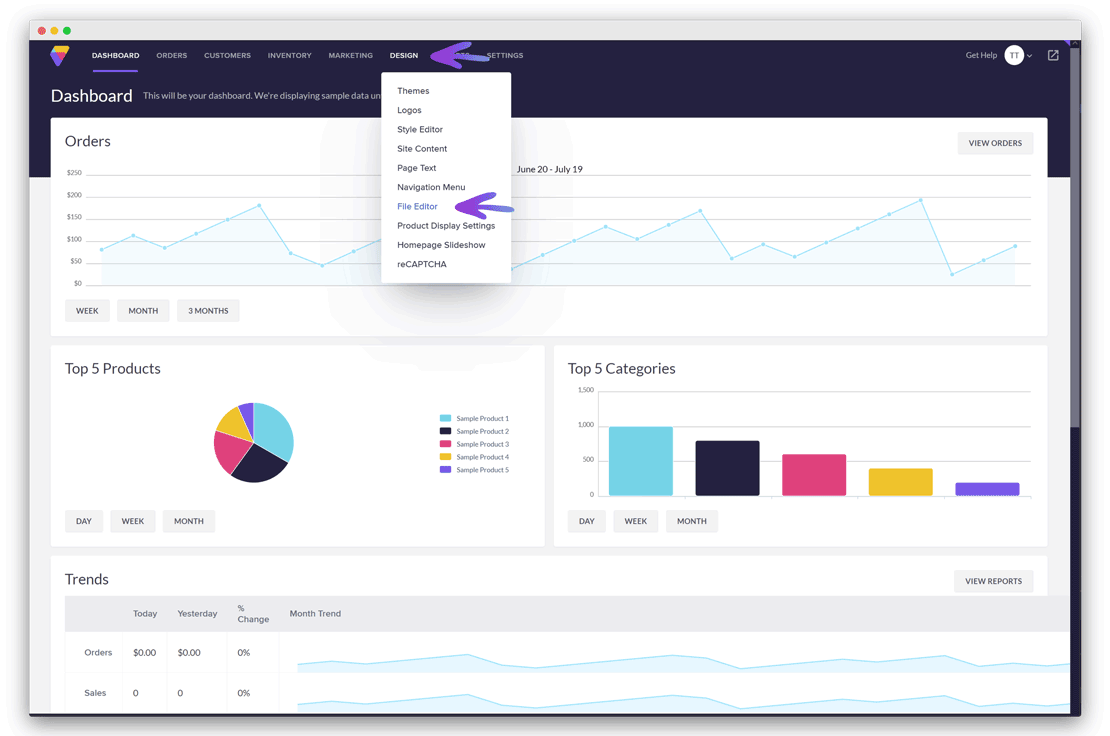
Volusion onWebChat installation - File Editor

Step 2 Click template.html in the Shortcuts menu on the right.
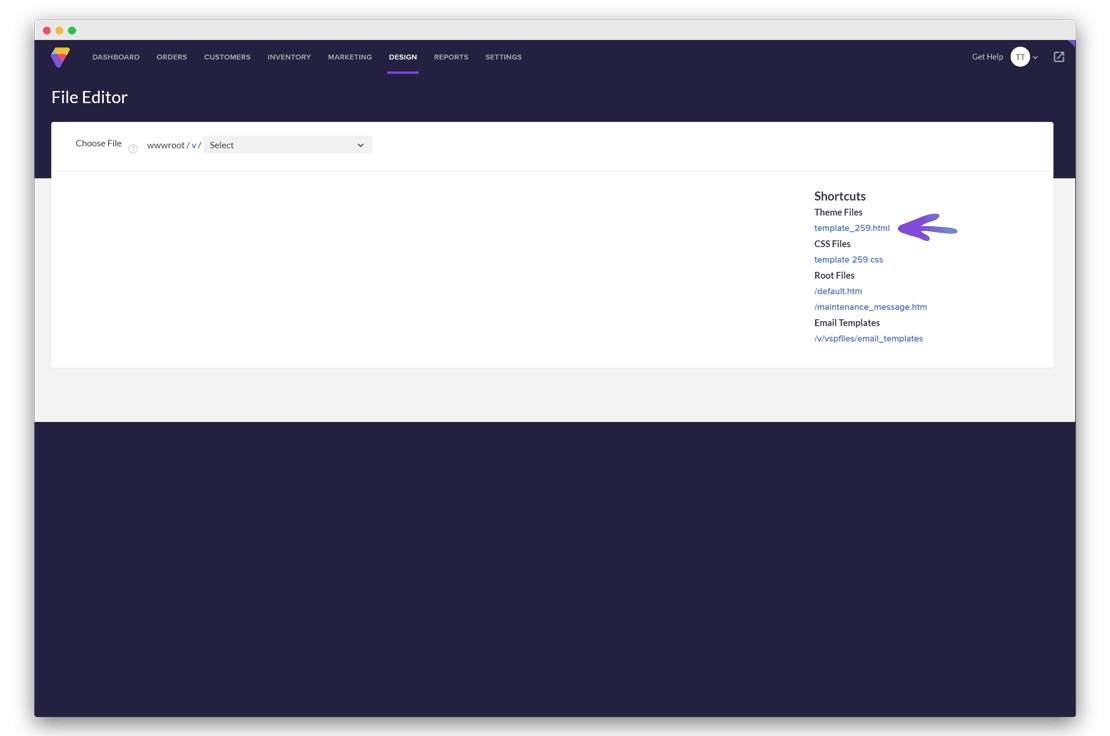
Volusion onWebChat installation - template.html

Step 3 Scroll down to the section containing <div id="footer">. Paste the onWebChat widget code directly above the closing </body> tag.

Don't have the widget code yet? Create a free onWebChat account, then copy the code from Settings > Widget > Installation in your dashboard.
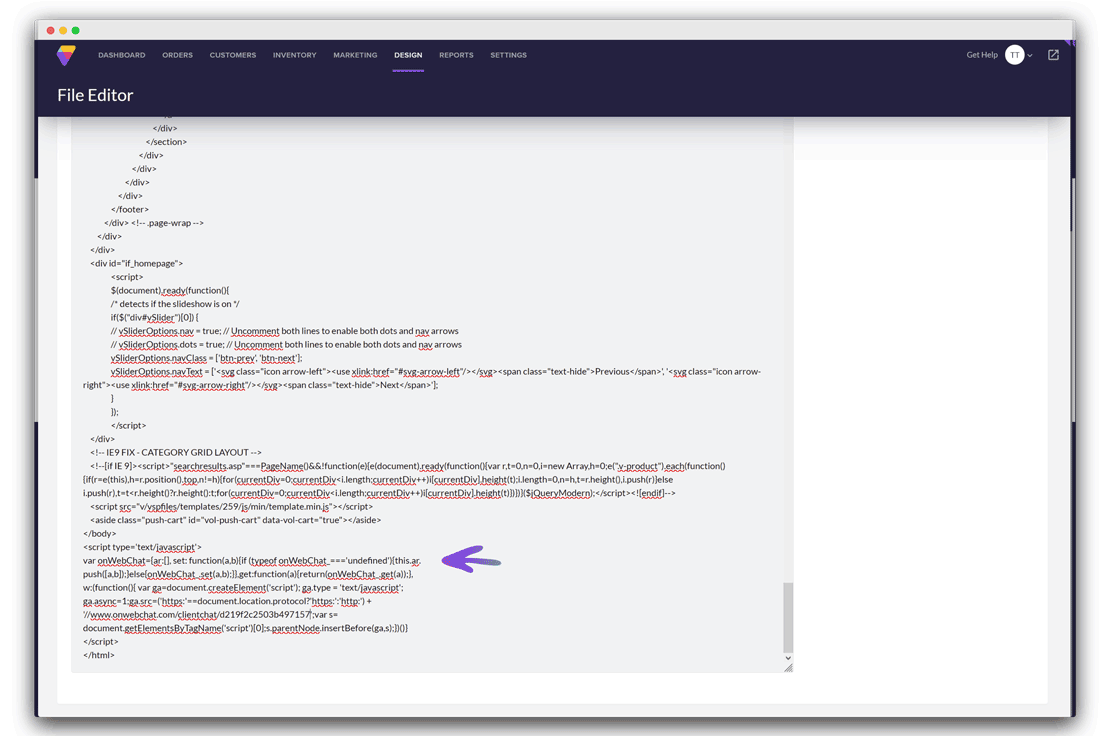
Volusion onWebChat installation - paste widget code

Done! Your live chat widget is now live on your Volusion store.

We use cookies to improve our website. No personal data or form inputs are captured.