How to Train an AI Chatbot for Better Performance
Overview This guide covers every way to train your onWebChat AI chatbot, and how to combine them, so it gives accurate, helpful and engaging answers to your visitors. Whether you have just run the automatic setup or are optimizing a chatbot that has been live for months, you will find practical methods to build a stronger knowledge base.
The automatic setup is only the beginning. When you give onWebChat your website address, it reads your pages, turns them into training content and grades the questions your visitors are most likely to ask. That gets a bot running fast, but a website rarely explains everything a visitor may ask. The methods below add what your pages leave out: exact answers to common questions, documents you never published, your live product catalog and order status. Each method works on its own or on top of the automatic setup, and you can combine them freely. See the automatic setup.
Already ran the automatic setup? Here is what to do next:
- Find the gaps: open the Test your bot tab in your setup results, and later the What to fix list in AI Analytics, to see which visitor questions the bot answers weakly or not at all.
- Fill each gap with a custom text (Method 1): a few written sentences fix a specific answer faster than any other method.
- Add what your website does not say: upload manuals and policies (Method 4), sync your store products (Method 5) and crawl new pages as you publish them (Methods 2 and 3).
Method 1 Add Custom Texts Manually
Manually adding training data takes a bit more effort, but it usually produces clearer, more relevant, and better-structured content, which leads to better chatbot performance.
How to Use
- Access Custom Texts: In the AI Chatbot section, select "AI Bot Training Data" and click "Add Text".
- Enter Training Text: Add the content you want the bot to learn. This can be simple information, statements, or question-and-answer pairs.
- Add Subject and Source URL: We recommend adding a subject and source URL (if the content comes from a specific page). This helps the AI match the most relevant training data and generate more accurate replies.
- Keep It Clear: Short, clear entries usually give the best results.
- Save and Test: Click "Save" to add the text to the training dataset, then test your bot right away.

Tips: Be specific. Focus on key customer concerns or unique aspects of your business. Do not overthink grammar; minor mistakes are usually fine.
Examples
Correcting Inaccurate Responses
User Asks: "What is your phone number?"
Bot Incorrectly Replies: "Our phone number is +123..."
Solution: Add a custom text such as: "What is your phone number? Our phone number is +1 567-890-1234. You can contact us Monday to Friday, 9:00 AM to 9:00 PM."
Handling Specific Requests
User Asks: "Can I speak to an agent please?"
Solution: Add a custom text such as: "Can I speak to an agent please? If an agent is online, they will contact you shortly. Otherwise, please leave your email address, and we will get back to you."
Updating Default Bot Message
If your bot replies with "I am sorry, I am specifically trained to assist with inquiries about our ... . Can I help with that?" and you want to change the wording, edit the Off-topic reply in AI Chatbot > Chatbot Settings.
Method 2 Crawl Your Full Website
With one click you can crawl your entire website, and onWebChat does exactly this by itself when you first give it your address. Run it again whenever your site changes.
How to Use
- Access the Crawl Feature: In the AI Chatbot page, open the "Website Crawler" tab and select "Crawl Full Website".
- Click "Start Crawling" to initiate the process.
- The AI chatbot automatically extracts text from your website and adds it to its training data.
Tips
- May Take Time: This process can take a few minutes, depending on the size of your website.
- Remove Unwanted Content: Remove repetitive or irrelevant content.
- Structured Content: Well-organized content improves the bot's ability to learn effectively.
Method 3 Submit URLs for Crawling
Automatically extract and use text content from your website pages as training data for your AI chatbot.
How to Use
- Access the Crawl Feature: In the AI Chatbot page, open the "Website Crawler" tab and select "Crawl Specific Pages".
- Enter URLs: Input the URLs of the web pages you want the AI chatbot to learn from.
- Start Crawling: Click "Start Crawling" to begin.
- The AI chatbot automatically extracts text from the selected pages and adds it to its training data.

Tips
- Select Relevant Pages: Include pages with FAQs, product details, and support information.
- Ensure Up-to-Date Content: Make sure the pages contain current and accurate information.
- Structured Content: Well-organized content improves the bot's ability to learn effectively.
Method 4 Upload Documents
Upload documents directly to train your AI chatbot. Supported file types are PDF, TXT, DOC, and DOCX, with a maximum file size of 10MB per upload. This method is ideal for user manuals, support guides, product catalogs, and internal documentation. The content is automatically processed and added to the bot's knowledge base.
How to Use
- In the AI Chatbot page, select the "AI Bot Training Data" tab and click the "Upload File" button.
- Select Files: Choose the file you want to upload.
- The AI chatbot automatically extracts text from the uploaded file and adds it to its training data.
Method 5 Sync Your Store Products (WooCommerce & OpenCart)
Running an online store? Sync your entire product catalog to your AI chatbot automatically with our free plugins for WooCommerce (WordPress) and OpenCart 2.3, 3 and 4. Product names, descriptions, categories, prices, and stock are imported for you, so your bot knows every product with zero manual entry. When your catalog changes, the data stays up to date on its own.
How to Use
- Install the Plugin: Download and install our free plugin for your platform, the onWebChat WordPress plugin for WooCommerce, or the onWebChat extension for OpenCart 2.3, 3 or 4.
- Connect Your Account: Link your onWebChat account with the plugin.
- Sync Products: Open the plugin settings and click "Sync Products". Your entire catalog is imported into your AI Chatbot training data.
- Automatic Updates: You can enable automatic product sync to keep your chatbot data up to date with zero effort.

This method is especially useful for online stores because it removes manual product entry and helps your chatbot answer questions about product features, availability, pricing, and recommendations.
The sync also sends each product's photo (WordPress plugin 3.10.0 and newer, OpenCart extension 1.10.0 and newer). When the chatbot recommends products, the chat widget shows them as cards with the photo, name and price, linking to the product page:

Learn more: WooCommerce AI Chatbot · OpenCart live chat & AI plugin
Bonus Live Order Lookup for WooCommerce & OpenCart
With the same WooCommerce and OpenCart plugins, your AI chatbot can also answer "Where is my order?" using live data from your store. When a customer asks, the bot securely looks up the order in real time and replies with its current status, items, and total, after verifying the customer's identity (order number plus the email used on the order; signed-in customers only need the order number). It works with zero extra setup, and order details are never stored in your training data.
Learn more: WooCommerce AI Chatbot · OpenCart live chat & AI plugin
Training Best Practices
a. Use High-Quality, Relevant Data
- Accuracy Matters: Make sure all training content is correct and up to date.
- Stay On Topic: Only include information relevant to your products or services.
b. Maintain Structured Data
- Add text in a clear and easy-to-understand format.
c. Avoid Redundancy
- Prevent Confusion: Remove duplicate entries or texts with the same or similar meaning.
d. Important Limits and Performance Tips
- Maximum AI texts: 20,000 entries per chatbot.
- Recommended for Best Performance: A few hundred to a few thousand well-crafted, manually added entries. Adding several thousand entries can slow response times a bit and make updates harder to manage.
- Quality over Quantity: Focus on high-quality, relevant training data instead of maximizing the number of entries.
Ongoing Maintenance
Training your AI chatbot is an ongoing process. Regular maintenance ensures optimal performance.
a. Monitor Bot Conversations
- Open AI Analytics: every conversation is analyzed for you about an hour after it ends, and the What to fix list shows the questions your bot could not answer, each with a draft answer you apply in one click.
- Read the weekly report: a written report is emailed to you every Monday. Open the chat history yourself when you want to see the exact wording of a conversation.
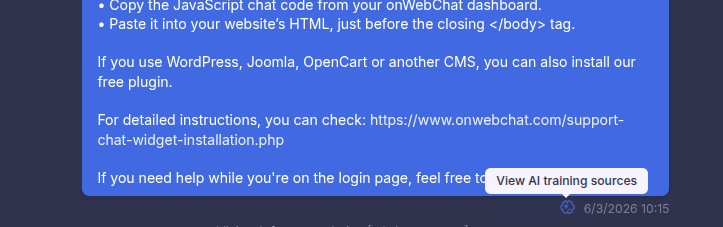
To better understand how the bot generated a reply, click the "View AI training sources" icon (see screenshot below). You will see up to five training texts used for that response. This helps you identify inaccurate, outdated, or duplicate training content so you can continuously improve bot performance.

b. Update Training Data
- Reflect Changes: Update the bot with any new products, services, or policy changes.
- Remove Obsolete Info: Delete outdated information to prevent misinformation.
c. Expand the Knowledge Base
- Add New Texts: Add new FAQs or emerging topics of interest.
- Team Collaboration: Encourage staff to contribute common customer questions.
Conclusion
The automatic setup gives your AI chatbot a solid start. Carefully adding and maintaining its training data on top of that is what turns good answers into excellent ones. The key to a successful AI chatbot is continuous learning and refinement.
If you have any questions or need assistance with training your AI chatbot, please contact our support team.
Enhance your customer support today
Sign up now and get a 14-day free trial of the AI agent (+ Pro) with 50 free AI credits.
Start your 14-day free trial