Introducing Operating Hours: Automate Your Team's Availability
How many times have you forgotten to set your status to "online" in the morning? Or left it on "available" long after you've called it a day?
You're not alone. Managing availability manually is one of those small tasks that quietly eats into your day - and occasionally costs you missed chats.
That's why we're excited to introduce Operating Hours - a new feature that lets you define a weekly schedule for your entire team, so your agents are automatically shown as online or offline at the right times, without lifting a finger.
How It Works
Head over to the new Operating Hours section in your dashboard. You'll find a clean, visual weekly schedule where you can set time ranges for each day of the week.
- Define up to 3 time ranges per day - perfect for split shifts, lunch breaks, or extended evening coverage.
- Leave a day empty and it's automatically marked as offline - great for weekends or holidays.
- Set your timezone so everything runs on the right clock, no matter where your team is.
Once enabled, all agents will follow this schedule. No more remembering to toggle your status every morning and evening.
Three Modes for Your AI Bot
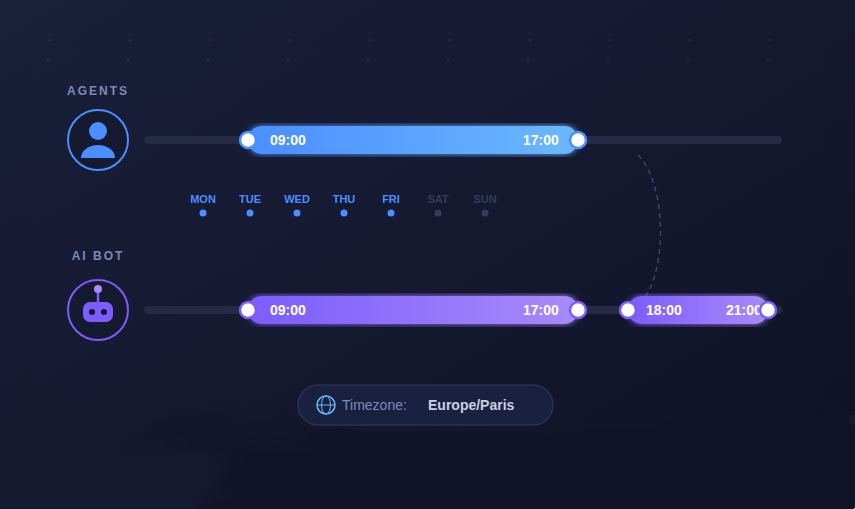
Operating Hours doesn't just apply to human agents - your AI chatbot gets its own availability settings too. You can choose from three modes:
- Always On - The AI chatbot stays active at all times, regardless of the agent schedule. This is the default and ideal if you want 24/7 automated support.
- Same Operating Hours as Agents - The AI bot mirrors the agent schedule exactly. When agents go offline, so does the bot.
- Custom Operating Hours - Define a completely separate weekly schedule for the AI bot. Perfect if you want the bot to cover evenings or weekends when agents are off.
This gives you full flexibility to decide exactly when and how your visitors get support - whether from a human, from AI, or both.
Need to Override? No Problem
Schedules are great, but sometimes real life doesn't follow a plan. Maybe you need to hop on early, or stay online a bit longer for an important customer.
That's why any agent can manually override the operating hours at any time by simply changing their status to online or offline. When they do, the dashboard makes it clearly visible that the schedule is being overridden.
And when they're ready to return to the regular schedule? Just one click on "Return to Operating Hours" and everything goes back to normal. Simple as that.
Why This Matters
Setting up Operating Hours means:
- No more missed chats because someone forgot to go online.
- No more "ghost" agents showing as available after hours.
- Consistent customer experience - visitors always know when to expect a response.
- Less manual work for your team, so they can focus on what matters: helping customers.
Whether you're a solo operator or managing a full support team, Operating Hours takes one more thing off your plate.
Get Started Now
Operating Hours is available now in your onWebChat dashboard. Head to your settings, enable the feature, set your schedule, and let it run.
Your team's availability, on autopilot. ⏱