AI Analytics: See What Your Chatbot Got Wrong, Then Fix It in One Click
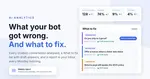
Your AI chatbot talks to visitors all day. Until now, the only way to know how it did was to read the transcripts one by one. The new AI Analytics page does that reading for you: every conversation is analyzed about an hour after it ends, and the page tells you what the bot answered, where it failed and, above all, what to fix. Once a week, the same findings arrive in your inbox.
What is new, in one look
- A What to fix list: the questions your training data does not answer, each with a draft answer you apply in one click.
- Plain numbers: how many chats the bot answered, left unresolved or handed to a person, compared with the previous period.
- A "Needs a human look" banner for the conversations that need you today.
- A written report every Monday morning, emailed to you with what to fix first.
- Critical alerts by email, grouped into at most one email a day.
Start with "What to fix"
Numbers tell you that something went wrong. The What to fix list tells you what, and hands you the fix. It sits right under the numbers, because it is the part you act on.
Each row is a question your visitors asked that your training data could not answer, grouped by topic, with the conversations behind it one click away. Where the report wrote a draft answer, the row says so:
Do you ship to Cyprus?
Press Add as training data and the draft opens in the training form, already filled in. Review it, correct it, save it, and the bot answers that question from then on. Facts the AI could not know, such as a price or a delivery time, appear in [brackets] for you to fill in: it never invents them.
Not every fix is a missing answer. The report also suggests:
- Instructions: a sentence for your chatbot's instructions, such as offering a person when a visitor asks for one. Applied with Add to instructions.
- Content fixes: a page in your training data that is out of date, or contradicts another one.
- Settings: something to change on the AI chatbot page.
Every row carries a priority (Urgent, Important or Improvement), the reason, and the conversations that prompted it. Nothing changes until you apply it. Mark a row as done when you have handled it, or hide it when it is not a topic you want the bot to cover. A topic you trained stays remembered: if visitors keep asking about it afterwards, the list says "still asked 3 times since", so you know the training did not land.
The numbers, in plain words
The top of the page is one row of numbers for the period you pick: bot conversations, answered, unresolved and answered without training data, each compared with the previous period. Below it, a chart of conversations per day by outcome, and a table of what visitors asked about, with the answered and unresolved rate per topic. A topic with a high unresolved rate is a training gap, not a visitor problem, and it is usually already waiting for you in the What to fix list.
When a conversation needs a person today, a Needs a human look banner points to it: a critical problem, fraud or legal language, a visitor who says another support channel never replied, or one who asked to speak to a person. Every flagged conversation opens right there, with what happened in one line.
A report in your inbox every Monday
Every Monday morning, for any week your bot had at least one conversation, the AI writes a short report on the week before, Monday to Sunday: what went well, what went wrong and what to do about it, in the language of your dashboard. The email leads with What to fix, then the numbers, with an arrow next to each one showing the move against the previous week, and a button that opens the full report.
Need one sooner? Press Write a new report on the page, any day, once a day. A report you ask for does not cost you the Monday email.
Separately, when the analysis flags a conversation as critical, meaning something harmful or a visitor in distress that the bot did not hand to a person, you get an email the same day, at most one a day. Both emails go to the account owner and can be switched off on the page, under Analysis and data.
What it costs, and how it works
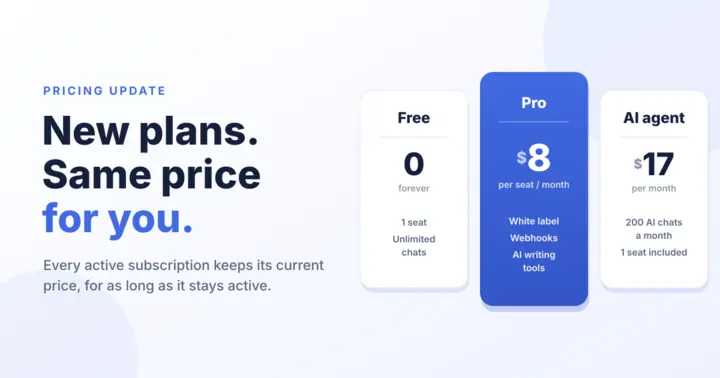
AI Analytics is included with the AI agent plan, as an add-on to Pro or stand-alone, at no extra cost, and it does not spend your AI credits. To build it, our AI system reads each completed chatbot conversation once, to extract the outcome and a few labels. When you start, the conversations of the last 14 days are analyzed. You can switch the analysis off for a website at any time, and delete everything collected so far.
Open it now
You will find AI Analytics in the sidebar of your dashboard, right below AI Chatbot. If your bot had conversations over the last two weeks, the first results are already there, and the first report arrives on Monday.
Not using the AI chatbot yet? See how it answers your visitors, or create a free account and add it to your website. What each plan includes is on the pricing page.
Frequently Asked Questions
- Does AI Analytics use my AI credits?
- No. It is included with the AI agent plan, as an add-on to Pro or stand-alone, and the analysis runs on our side. Your credits are only spent when the bot answers a visitor, or when you use Generate a reply in AI Assist.
- When is a conversation analyzed?
- About an hour after it ends. The report is written automatically every Monday morning for the previous week, and you can also ask for one on the page any day, once a day, with the Write a new report button.
- Does applying a fix change my chatbot immediately?
- Nothing changes until you apply it. Add as training data opens the training form with the draft already filled in, for you to review and save. Add to instructions asks for a confirmation before the sentence is added to your chatbot instructions.
- Can I switch off the emails, or the analysis itself?
- Yes. Under Analysis and data, at the bottom of the AI Analytics page, you can switch off the weekly report email, the critical alerts, or the analysis of your conversations altogether, and delete everything collected so far.
- Who on my team can see the page?
- Agents who are allowed to manage the AI chatbot, the same permission that opens the AI chatbot page. Reading the conversations behind a row also needs the chat history permission.