Install onWebChat on Any Website
Add live chat to your site in seconds. Use our free plugins for WordPress, Joomla, OpenCart, or paste the code manually.
View Integration Options
Manual Installation Guide
Step 1 Using WordPress, Joomla, OpenCart, or another CMS? The easiest way to get started is with one of our free plugins.
For custom websites or other platforms, simply copy the installation code from your dashboard and paste it into your site's HTML.
You can find your snippet under Settings > Widget > Installation, as shown below.

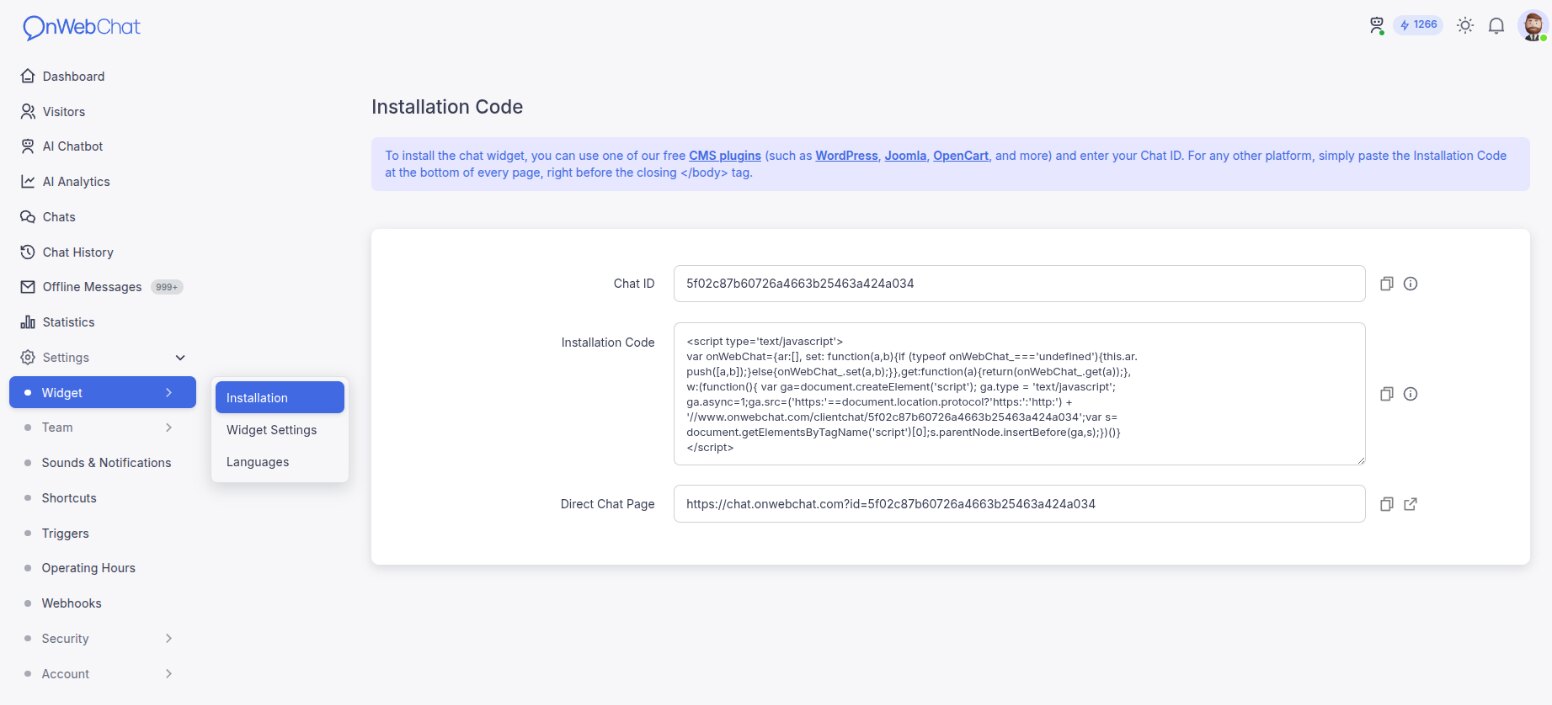
Step 2 Locate the installation code in your dashboard:
- Go to Settings
- Open Widget > Installation and copy the Installation Code
Step 3
Paste the code at the bottom of each page, right before the closing </body> tag.
Here is an example:
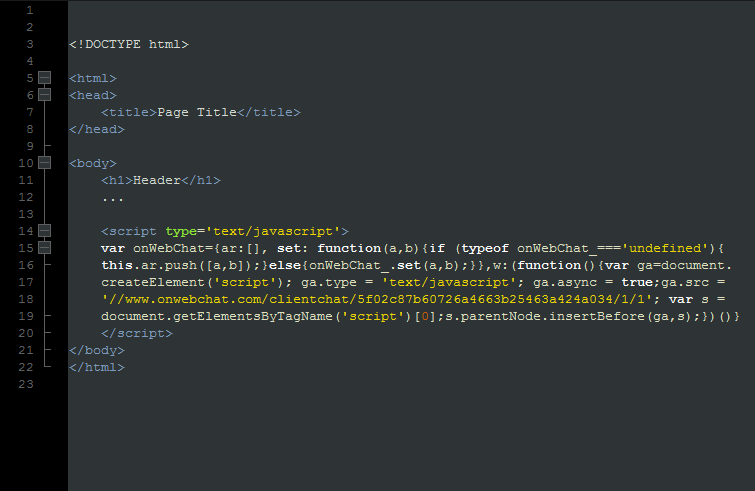
The installation code looks like this. Copy yours from the dashboard: it already contains your Chat ID in place of YOUR_CHAT_ID.
<script type='text/javascript'>
var onWebChat={ar:[], set: function(a,b){if (typeof onWebChat_==='undefined'){this.ar.
push([a,b]);}else{onWebChat_.set(a,b);}},get:function(a){return(onWebChat_.get(a));},
w:(function(){ var ga=document.createElement('script'); ga.type = 'text/javascript';
ga.async=1;ga.src=('https:'==document.location.protocol?'https:':'http:') +
'//www.onwebchat.com/clientchat/YOUR_CHAT_ID';var s=
document.getElementsByTagName('script')[0];s.parentNode.insertBefore(ga,s);})()}
</script>
Step 4 Refresh your website. The chat widget should now be visible and ready to use.
Running into issues? We're here to help. Contact our support team if you need a hand.