Connect onWebChat with Wix
Add live chat to your Wix website in seconds with onWebChat and start engaging directly with your visitors and customers.
Wix Live Chat Installation Guide
Step 1 Open the Wix Editor and click Add Elements (+) on the left.
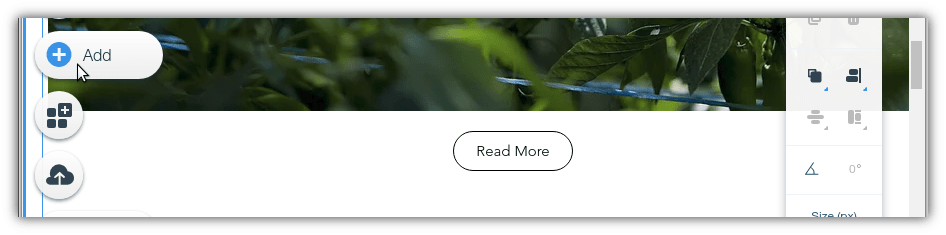
Step 2 Select Embed Code, then Embed HTML.
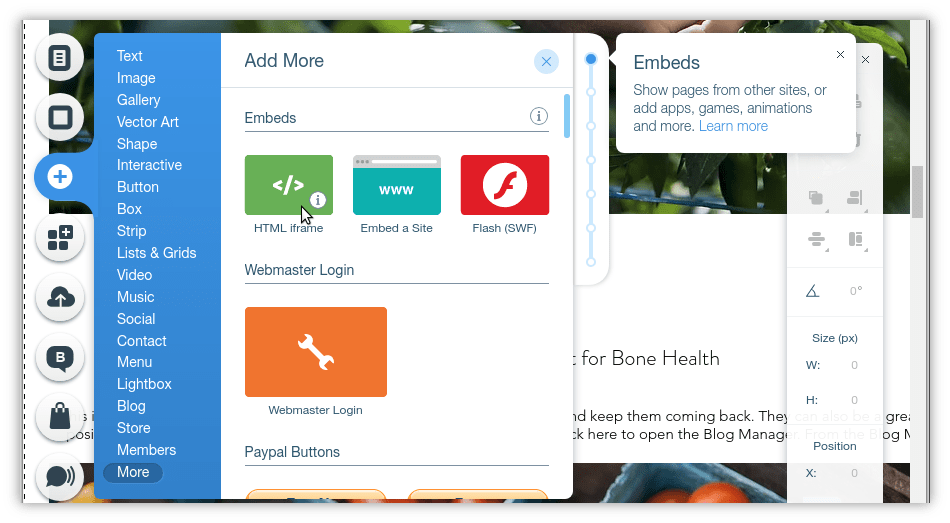
Step 3 A box appears on your page. Click Enter Code and paste the onWebChat widget code into the Add your code here field.
Don't have the widget code yet? Create a free onWebChat account, then copy the code from Settings > Widget > Installation in your dashboard.
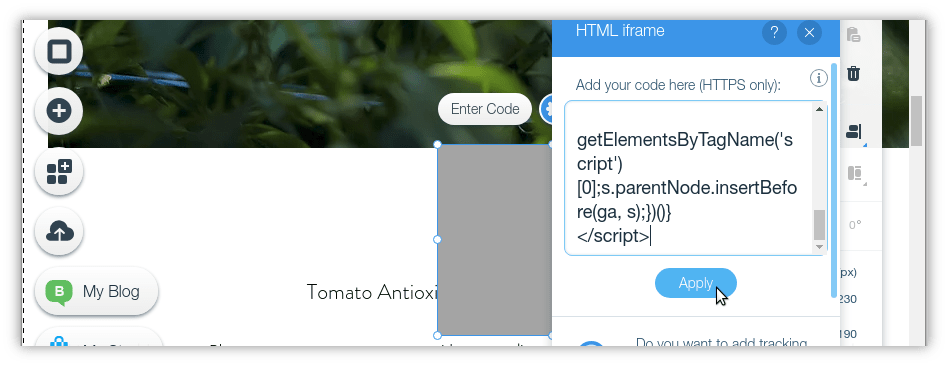
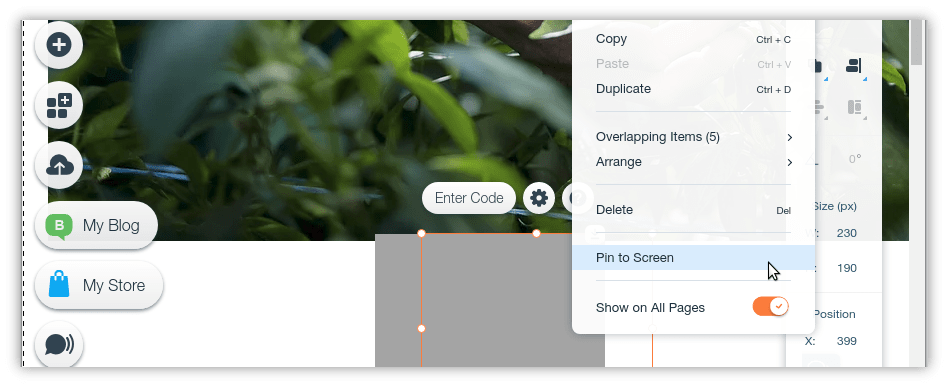
Step 4 Click Apply and close the code box. Right-click the HTML box on your page and select Show on All Pages, then Pin to Screen.
Place the chat at the corner you prefer (bottom-left or bottom-right) and set Horizontal offset and Vertical offset to 0px. Resize the HTML box to fit the chat window (about 500px width × 550px height works well). Click Publish, then open your site in a new tab to test onWebChat.
Done! Your live chat widget is now live on your Wix site.
Tip: if your Wix site is on a Premium plan with a connected domain, you can add the widget code site-wide instead: go to Settings → Custom Code → Add Custom Code, paste the code, choose All pages, place it in Body - end and click Apply. The chat then floats over your site with no HTML box to place or resize.