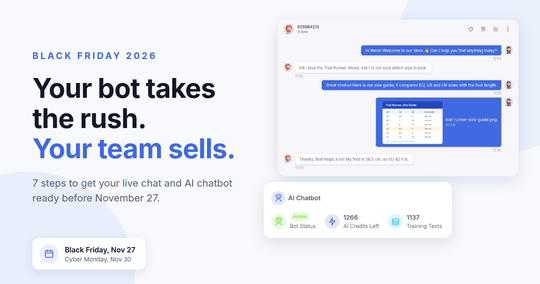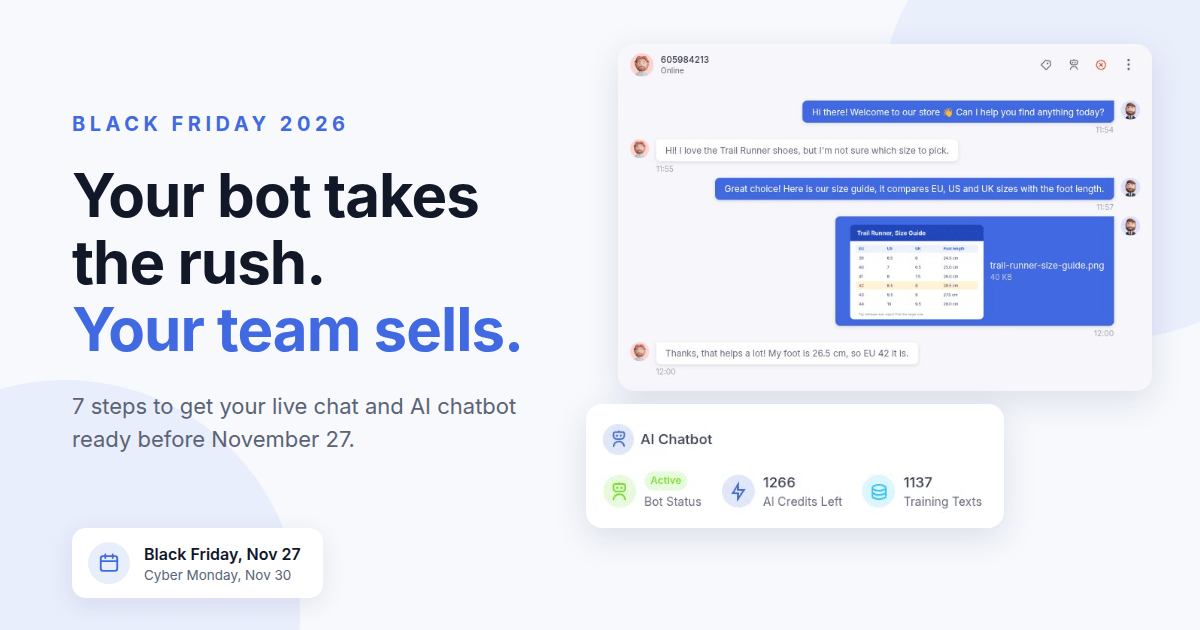
Black Friday 2026: Get Your Live Chat and AI Chatbot Ready in 7 Steps
Black Friday is on November 27 this year, and Cyber Monday on November 30. Your chat will fill up with the same few questions: Is this on sale? Will it arrive before Christmas? Where is my order? Here are seven steps to do before the rush, so the AI chatbot answers the repeat questions and your team takes the chats that sell.
1. Teach the bot your Black Friday facts
Once your offer pages are live, press Read my website again on the Chatbot Settings tab, or crawl just the new pages on the Website Crawler tab. Your own edits stay as they are. Then add one training text for what no page says:
Black Friday sale: November 27, 00:00 to November 30, 23:59 (New York time). 30% off all running shoes, gift cards excluded. Discount codes do not combine with sale prices. Order by December 15 for delivery before Christmas.
Keep the dates in the text, so the bot knows when the offer is over.
2. Let prices and orders update themselves
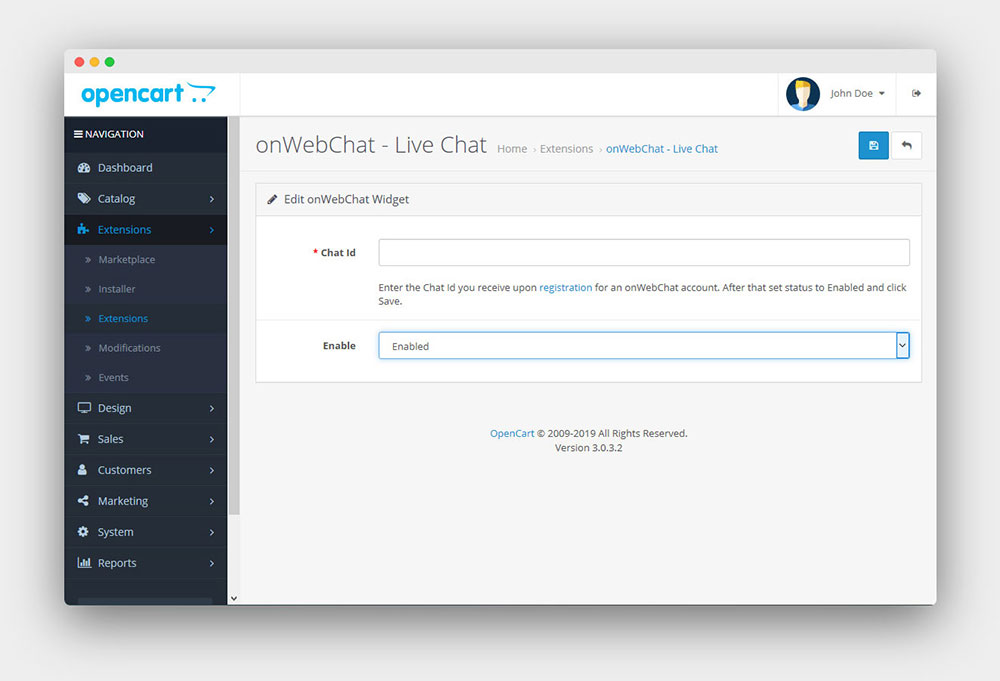
On WooCommerce and OpenCart, the plugin syncs a product again whenever its price or special price changes, so the bot quotes the sale price during the sale and the regular price after it. On OpenCart, scheduled specials are synced the first time someone opens the admin that day, so open it on the morning of November 27.
The bot also answers "Where is my order?" live, after checking the order number and email. This lookup is off by default: switch it on in the plugin settings now.
3. Test it with real questions
Open the Test Your Bot tab and ask what your shoppers will ask: Is this product in the sale? Does my code work on sale items? Will it arrive before Christmas? When an answer is weak, add the missing fact and ask again.
4. Decide when a person takes over
When a visitor asks for a person, the chat is marked Waiting for agent and your team gets a sound, a desktop notification and a push on the app. Take over chat stops the bot. On the Chatbot Settings tab, switch on Handover when unsure and Collect contact details, so no question is lost at night.
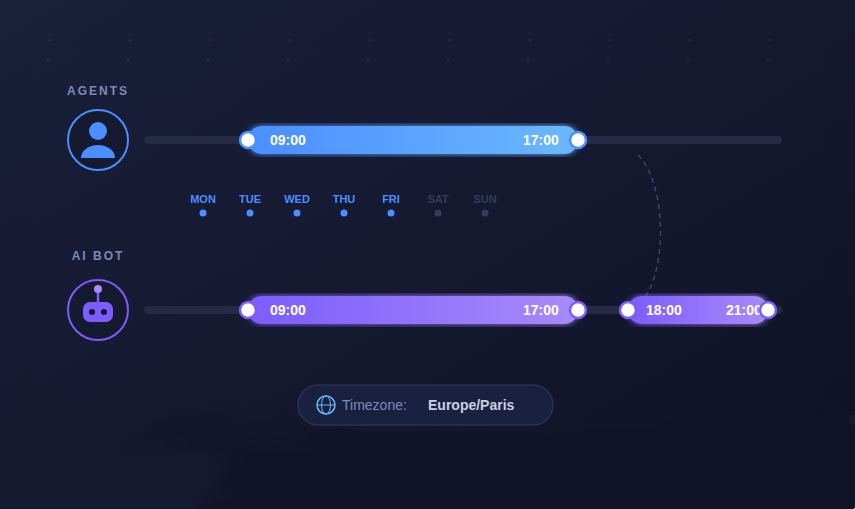
Keep the bot Always on in Operating Hours. Using departments? The bot now stays silent while an agent of the chosen department is online, and answers when none is.
5. Add triggers on cart and checkout
Add an Engagement trigger on pages whose address contains "cart" or "checkout": "Any question about delivery or payment? Ask here." When the visitor replies, the bot answers. Add reply buttons such as "Black Friday deals" and "Where is my order?" too. Leave the other languages empty and they are translated with AI when you save.
6. Prepare your team
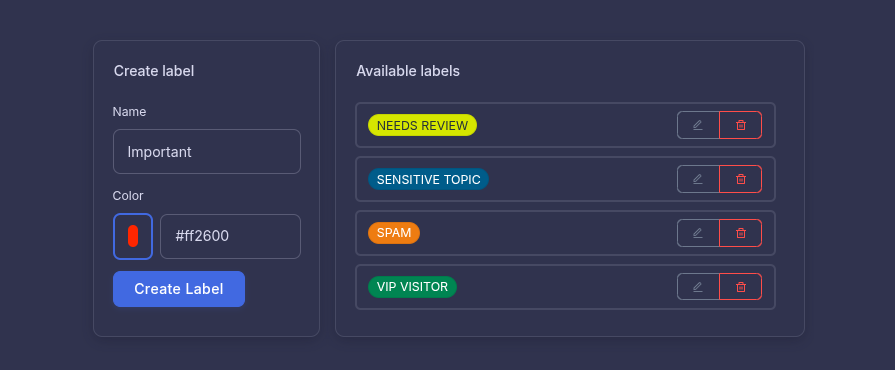
Save your answers about the offer, delivery and returns as Global shortcuts, create labels such as "Black Friday" and "Return", and use Translate when a shopper writes in a language you do not speak.
7. Check your credits, keep your phone close
Each bot conversation uses 1 AI credit. If your credits run out, the bot finishes its chat and switches off, and new chats go to your agents or to the offline form. Buy a credit pack before the weekend if you are close (purchased credits never expire) and switch on the Low AI Credits Alert.
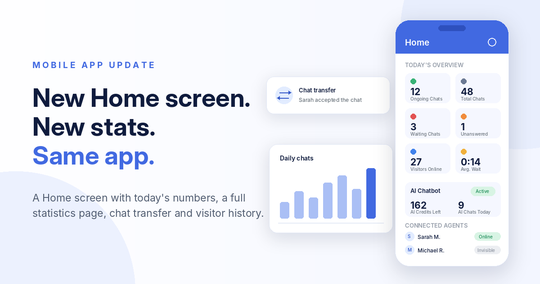
Install the onWebChat app on every agent's phone: it now sends a push when a visitor is waiting for a team member.
Bonus: Cyber Monday morning
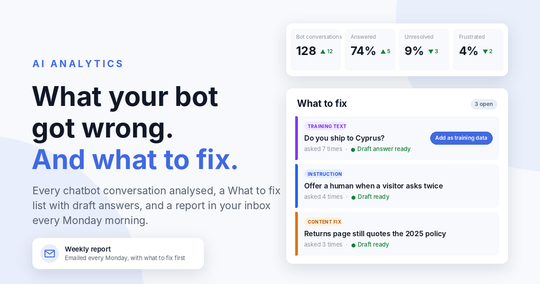
The AI Analytics weekly report arrives every Monday morning, so on November 30 it covers Black Friday week. Apply its What to fix drafts before the Cyber Monday traffic starts. And on December 1, delete the Black Friday training text.
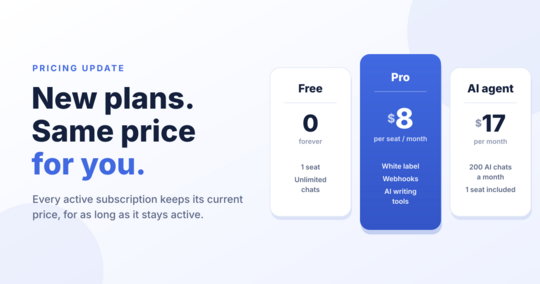
Not using onWebChat yet? Create a free account: the automatic setup prepares your bot from your website address, and the 14-day free trial of the AI agent includes 50 AI conversations, no credit card required. Plans are on the pricing page.
Frequently Asked Questions
- Will the AI chatbot know my Black Friday prices?
- On WooCommerce and OpenCart, yes: price changes are synced to the bot automatically. On other platforms, crawl your sale pages or add a training text with the offer.
- What happens if my AI credits run out during the sale?
- The bot finishes the chat it is in and switches off. New chats go to the agents who are online, or to the offline form when nobody is.
- Do I need a paid plan to use the AI chatbot?
- The automatic setup and 30 test questions are free on every plan. To put the bot live on your website you need the AI agent plan, which is part of the 14-day free trial.